How do you find which cookies are available on the website(s)?
Right-click anywhere on the page
Click inspect
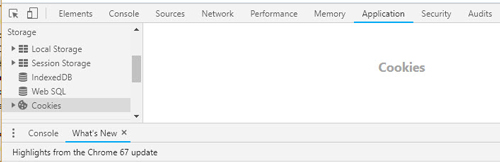
In Chrome and Opera : Navigate to the Application tab. You find the cookies in the Cookies session. In Firefox: Navigate to the Storage tab and the Cookies session
See and take notes of every single cookie name and domain in case the domain is different from the website you are visiting
After you’ve completed these steps you can start researching what each cookie is for. Check them individually if you think something looks suspicious
(Hover over to enlarge the image)
An easier way to do this, in Chrome and
Firefox, press F12
Another
and easier way to find the websites cookies is:
Click or right-click on the icon the far left of the browser's URL.
The symbols that are usually look like this
or perhaps
.
And sometimes they looks like,
In Microsoft Edge its also the left side, but the look icon
looks like,
In Microsoft Explorer it is on the right side instead,
There you get your information
Don't forget that there are plenty of software that scans the data
more in depth, what's gathered about you,
not just cookies but everything about history and how to use the internet
etc. They can also help you with some adware and spyware, and it may be very good to clear
the data that your softwares collects as well!
You have, Advanced SystemCare, Glarys Utilities etc.
More about the Padlocks':
What, on the other hand, is classified and will be classified as "dangerous" is:
Google says about this: "Not secure: Proceed with caution. Something is severely wrong with the privacy of this site’s connection. Someone might be able to see the information you send or get through this site."
[...]. (Google
FAQ).
But we do not know and nobody really knows how Google
etc. will rank http vs. https in the future. It's possible that all non-https pages will be "dangerous". in Google's eyes... Perhaps all http pages will be penalized with this alert sign?
You decide.
But keep this in mind if that happens, because everyone cannot afford to update maybe upward one hundred
sites with SSL certificate.
When the padlook look like
this, in Chrome
(but sometimes even in Firefox). Google says: "The site isn't using a private connection. Someone might be able to see or change the information you send or get through this site.
On some sites, you can visit a more secure version of the page: Select the address bar. Delete http://, and enter https:// instead."
And in Firefox
. If this turns out, that means that the page is https, Mozilla Firefox says itself: ."Parts
of this page are not secure (such as images)." This does not necessarily mean that the page is unsure, but it can be anything from an old or badly encoded WordPress theme or plugin, to an image referring to facebook or flickr etc.
Again, you decide.
Example:
We go back to the Inspector,
If we press F12 again so we get the Inspector
Tool, we can easily see if there are any errors on the page and what they may depend on. In the top right corner they are displayed. In this case there are 3 errors and 2 warnings. If we now click on the Console tab then we can see what they are. Probably, in this case, something is wrong with the WordPress theme, and the errors also seem to be related to a javascript, "jsev3.min ..." etc.
As mentioned above, "Parts of this page are not secure (such
as images)." It may be one of the most common errors,
it is so called Mixed
Content, but it can also be broken issues. These errors are caused by sources (images, scripts, or stylesheets)
when they are still loading using the insecure HTTP protocol in the URL's. Yes, so little can
affect. Mostly of the incorrect URL's will be images, files, embeds, and other data stored in your WordPress database.
So the errors and uncertainties of web browsers need not mean that the page itself is
insecure. Any decent WordPress themes and plugin following WordPress coding standards will not cause mixed content errors.
Note. If you get these issue, "Mixed
Content",
so there's a plugin Really Simple SSL, that can fix this! This plugin will take care of
your SSL connection including the Mixed Content errors. What the plugin does behind the scenes
is:
It check SSL certificate
It sets up your WordPress to use https in URL's
It sets up redirects from HTTP to HTTPs
and it looks for URL's in your content still loading from insecure HTTP sources and attempt to fix them.
Note: The plugin attempts to fix mixed content errors by using
an output buffering technique. And it can have a negative performance impact because it’s replacing content on the site as the page is being loaded.
But this impact is only been on the first-page load, and does not get so noticeable if you are using a caching plugin.
The plugin might say you can keep SSL and safely deactivate the plugin,
but that is not 100% true. I think the best is to keep the plugin active because deactivating the plugin will bring back
your mixed content errors.
What is that cookie for?
Cookies have span>
very
weird names
and
sometimes it is not clear what they
are for just by looking at the cookie name.
If you are not sure what a cookie is for you need to search for
the name and see if you can relate a cookie to a specific
service.
For instance, some systems session cookies do not have a certain name, instead cookie names are generated randomly, like a hash value, eg: 2d810b45f776859348ec319708ce2e05 (32 symbols of alphanumeric characters).
GDPR does not focus on cookies and digital communications.
Main goal of GDPR is to regulate how personal information is collected, stored and erased. The e-Privacy Regulation isn’t just about cookies, it concerns electronic communications and the right of confidentiality, data/privacy protection and more.
In fact, cookies are mentioned in GDPR only once:
(30): "Natural persons may be associated with online identifiers […] such as internet protocol addresses, cookie identifiers or other identifiers […]. This may leave traces which, in particular when combined with unique identifiers and other information received by the servers, may be used to create profiles of the natural persons and identify them."
In other words: when cookies can identify an individual, it is considered personal data.
Important note - not all cookies are considered as personal data. If you have a simple website, cookies that set are not used to identify a person and does
not collect any personal information from visitors - there is a high chance you do not need to worry about GDPR at all.
Regulation vs Directive
It is important to understand difference between directive and regulation.
Directive is a legal act of the European Union, which requires member states to achieve a particular result without dictating the means of achieving that result.
Regulations have binding legal force throughout every Member State and enter into force on a set date in all the Member States.
Regulation is same for all member states, while with e-Privacy Directive was created as a set of rules for every Members State to create its own laws. Previously we had Directives, now we are starting to follow Regulations.
ePR* is specifically designed to explain how privacy and cookies should work together.
*(ePR stands for e-Privacy Regulation: a regulation for electronic communications and the right of confidentiality).
Manage cookies in browsers?
Computer:
in
Google
Chrome:
Clear
and delete cookies:
If you remove cookies, you'll be signed out of websites and your saved
preferences could be deleted.
On your computer, open Chrome.
At the top right, click MoreSettings.
At the bottom, clickAdvanced.
Under "Privacy and security,"
clickContent settings.
ClickCookies.
Under "All cookies and site data,"
clickRemove all.
Under "Privacy and
security," clickContent settings.
ClickCookies.
TurnAllow
sites to save and read cookie dataon
or off.
Block cookies from other sites
You can allow cookies from the
site you visit, while blocking cookies from other sites that own
ads or images on the webpage. To block these third-party
cookies, turn onBlock third-party cookies.
All cookies and site data from
other sites will be blocked, even if the site is allowed on your
exceptions list.
If you allow cookies by
default, you can still block them for a certain site.
On your computer, open
Chrome.
At the top right,
click MoreSettings.
At the bottom, clickAdvanced.
Under "Privacy and
security," clickContent settings.
ClickCookies.
Next to "Block,"
"Clear on exit," or "Allow," clickAdd.
Enter the web address.
To create an exception for an entire domain, insert[*.]before
the domain name. For example,[*.]google.comwill
matchdrive.google.comandcalendar.google.com.
You can also put an IP address or a web address that
doesn't start withhttp://.
ClickAdd.
To remove an exception you
don't want any more, to the right of the website, click MoreRemove.
Note:If
you’re using your Chromebook at work or school, you might not be
able to change this setting. For more help,contact
your administrator.
You can let sites remember
information during your browsing session, but automatically
delete the cookies when you quit Chrome.
On your computer, open
Google Chrome.
At the top right,
click MoreSettings.
At the bottom, clickAdvanced.
Under "Privacy and
security," clickContent settings.
ClickCookies.
Turn onKeep
local data only until you quit your browser.
Note. You clear the browsing data and the cache memory in the same menu.
in Mozilla Firefox:
Note. Cookies are enabled by default in Firefox
To check or change your settings:
Click the menu
buttonand
chooseOptions.
Select thePrivacy
& Securitypanel and go to theCookies
and Site Datasection.
SelectAccept
cookies and site data from websites (recommended)to
enable cookies. To disable cookies, selectBlock
cookies and site data (may cause websites to break).
Keep until: they expire:
Each cookie will be removed when it reaches its
expiration date, which is set by the site that sent the
cookie. I close Firefox:
The cookies that are stored on your computer will be
removed when Firefox is closed.
Close theabout:preferencespage.
Any changes you've made will automatically be saved.
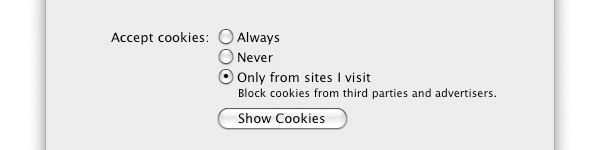
in Apple Safari:
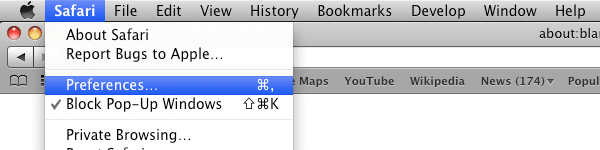
On the toolbar, click "Safari" and choose "Preferences":
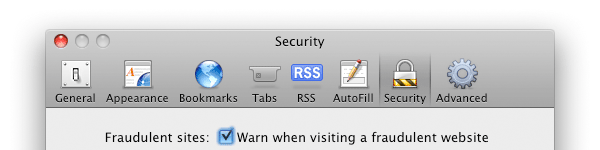
On the Preferences menu, choose "Security":
On the Security menu, you'll see three radio buttons referring to cookies:
Choose either to allow all cookies, or to allow cookies for sites you navigate
to.
Note:If you don't allow sites to save
cookies, most sites that require you to sign in won't work.
On your Android phone or tablet,
open the Chrome app.
To the right of the address bar,
tap MoreSettings.
TapSite
settingsCookies.
TurnCookies on
or off.
Optional: Choose to allow
third-party cookies.
You can allow cookies from the site you visit, while blocking cookies from
other sites that own ads or images on the webpage. To block these
third-party cookies, uncheck the box next to "Allow third-party cookies."
All cookies and site data from other sites will be blocked, even if the site
is allowed on your exceptions list.


 or perhaps
 .
And sometimes they looks like,
.
And sometimes they looks like, 


 Google says about this: "Not secure: Proceed with caution. Something is severely wrong with the privacy of this site’s connection. Someone might be able to see the information you send or get through this site."
[...]. (
Google says about this: "Not secure: Proceed with caution. Something is severely wrong with the privacy of this site’s connection. Someone might be able to see the information you send or get through this site."
[...]. ( . If this turns out, that means that the page is https, Mozilla Firefox says itself: ."Parts
of this page are not secure (such as images)." This does not necessarily mean that the page is unsure, but it can be anything from an old or badly encoded WordPress theme or plugin, to an image referring to facebook or flickr etc.
Again, you decide.
. If this turns out, that means that the page is https, Mozilla Firefox says itself: ."Parts
of this page are not secure (such as images)." This does not necessarily mean that the page is unsure, but it can be anything from an old or badly encoded WordPress theme or plugin, to an image referring to facebook or flickr etc.
Again, you decide.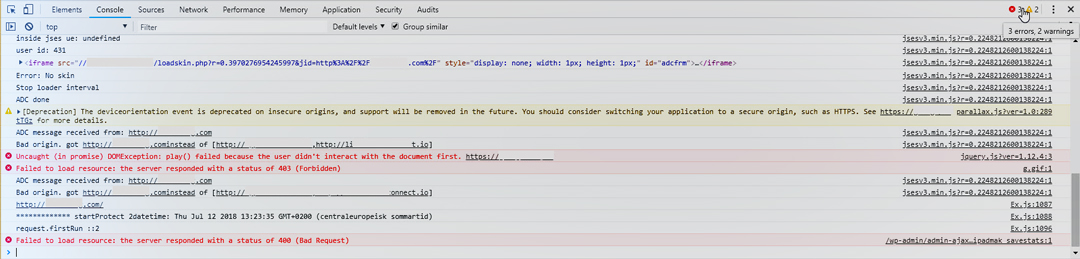


 .
.

 .
.